Cloud storage is supposed to be the boring part of your workflow.
You save. It syncs. You move on with your day.
But if you have ever opened a client deck and realized the “final” is actually from Tuesday, or you’re staring at five copies named FINAL_final_v7_USETHISONE(2).pptx… yeah. The boring part just became the expensive part.
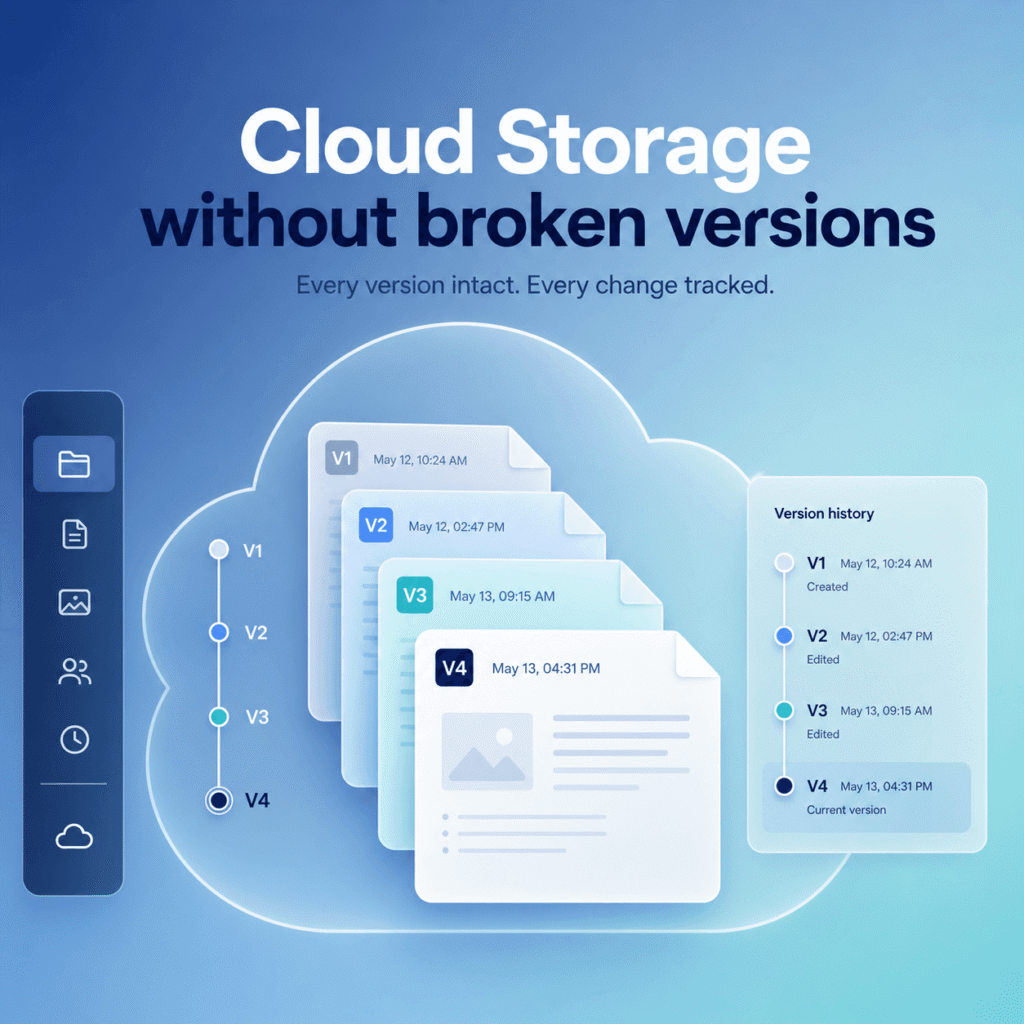
Versioning is the quiet feature that decides whether cloud storage feels invisible or whether it turns into a low grade panic system.
This guide is about cloud storage that won’t mangle file versions. Not “best cloud storage” in a vague way. Specifically, tools that can:
- keep versions without duplicating mess everywhere
- make it obvious which version is current
- let you roll back quickly without calling IT (or becoming IT)
- not explode the moment two people edit at once
I’ll cover what actually breaks versioning, what to look for, and which services tend to behave like grown ups.
And if you like side by side breakdowns like this, Tool Pick Guide is basically built for it. We do the “okay but what happens in real workflows” part, not the brochure part.
Why file versions get mangled in the first place
Version problems usually come from one of these situations.
1. Sync conflicts (two devices, same file, same time)
You edit Proposal.docx on your laptop offline.
Your teammate edits the same file in the office.
Both reconnect. The cloud tool panics politely and creates:
Proposal (John’s conflicted copy).docxProposal (Recovered).docxProposal - Copy.docx
Now the team starts editing different branches of reality. Fun.
2. Apps that don’t do real collaboration but pretend they do
Some storage tools are great at syncing, but not great at co editing. If your workflow relies on Microsoft Office files, Adobe files, Figma exports, CAD files, whatever… the storage layer matters.
If the tool can’t lock files properly (or can’t coordinate edits), you get version splintering.
3. Version history exists but it’s hidden, limited, or weird
Lots of services technically have version history. Cool. But:
- versions expire too quickly
- you can’t see who changed what
- you can’t restore without admin permission
- versions are per file, but the UI makes it feel like it’s per folder (or vice versa)
So you end up doing the manual versioning thing. Which is basically naming files like it’s 2009.
4. Cross platform edge cases and “helpful” features
Some tools auto convert file types, or “optimize” uploads, or merge folders in a way that can rewrite metadata. Sometimes it’s not the version history that breaks. It’s the file itself that subtly changes.
(Also, if you deal with macOS package files, creative suites, or anything with sidecar files, you already know storage can get spicy.)
What good versioning actually looks like
Here’s the checklist I wish every cloud storage vendor had to answer on one page.
Clear version history, easy restore
You should be able to right click a file, see a timeline of versions, and restore one in seconds.
Also important. The restored version should become the current file, not create a new random duplicate unless you ask for that.
Conflict handling that doesn’t create a trash pile
Conflicts happen. The question is whether the tool:
- surfaces the conflict clearly
- helps you pick a winner
- avoids multiplying copies forever
Some systems are good at “conflict resolution.” Others are just good at generating more files.
Co editing or file locking, depending on your workflow
For Google Docs style files, co editing is the dream. For heavy binary files (InDesign, PSDs, some Excel monsters), file locking is often more realistic.
A grown up system supports at least one of these properly.
Version retention that matches business reality
If you’re an agency, a 30 day version window can be a joke. You might need to roll back a month later when a client says “use the old pricing table.”
Look for retention policies you can control. Or at least long default windows.
Admin and permissions that don’t ruin the feature
Versioning is useless if only one person can restore versions and that person is always in meetings.
On the flip side, you also don’t want interns restoring old versions of the master brand deck by accident.
So you want granularity. Who can edit. Who can restore. Who can permanently delete.
Audit trails (who changed what, when)
If you handle client work, compliance, or just have that one teammate who swears they didn’t touch the sheet… audit logs save time and arguments.
The short list. Cloud storage that usually won’t mangle versions
I’m going to focus on tools that teams actually use in small businesses, agencies, and freelance setups. Not enterprise only platforms that require a six month procurement ritual.
1. Google Drive (Workspace) for teams living inside Google files
Google Drive’s best versioning feature is kind of invisible: Google Docs, Sheets, and Slides have native version history that is genuinely solid.
- Named versions
- Detailed edit history
- Easy rollback
- Multiple people editing at once without conflicts
That part is great.
Where it gets trickier is when your team uses Drive as storage for Microsoft Office files and other binaries. Drive can store them fine. But if you’re constantly editing .docx or .pptx files outside the browser, your versioning story depends on how people open and edit those files.
Still, for teams that are mostly in Google native formats, Drive is one of the least stressful systems. It’s hard to accidentally make a mess because the collaboration model is built in.
What I like about Drive versioning
- Very clear “Version history” inside Docs editors
- You can name versions (huge for client milestones)
- Collaboration feels natural, not bolted on
Where teams get burned
- Mixed environments with Office files edited locally can create confusion
- Shared Drives permissions can be configured badly if nobody owns it
- Offline edits can still cause conflicts, just less often with native files
Verdict If you are a Google Workspace shop, Drive is the safest “versions don’t get mangled” option because the files are not really files in the old sense. They’re collaborative documents with history.
2. Microsoft OneDrive + SharePoint for Office heavy workflows
If your world revolves around Word, Excel, PowerPoint, and Teams chats, then OneDrive and SharePoint are the versioning workhorses you need.
Microsoft’s strategy here is quite simple: co-authoring plus version history plus admin control. When set up correctly, it’s nearly impossible to lose work.
You typically get:
- automatic version history for files stored in SharePoint libraries
- co-authoring in Office apps
- file restore and previous versions
- auditing and compliance features (depending on plan)
OneDrive personal storage combined with a SharePoint team site is a common setup for small businesses. It may not always be intuitive, but it’s certainly capable.
What I like about Microsoft versioning
- Office co-authoring is excellent when everyone is signed in properly
- Version history is accessible and fairly clear
- SharePoint provides retention and governance options
Where teams get burned
- Confusion between OneDrive (personal) vs SharePoint (team)
- Sync client issues can still create conflict copies
- Permissions can get messy fast if you don’t standardize folder ownership
Verdict If your files are mostly Office docs, OneDrive plus SharePoint is one of the best ways to avoid version chaos. The key is standardizing where “team truth” resides, usually in SharePoint, not someone’s personal OneDrive.
3. Dropbox (especially for mixed file types and agency life)
Dropbox has been a player in this space for a long time. While it may not be the trendiest platform anymore, it remains one of the most reliable for versioning across a diverse mix of file types.
Dropbox’s core strengths include:
- strong sync behavior
- good version history (with plan dependent retention)
- simple restore flow
- Dropbox Replay and other creative adjacent tools if needed
- file locking and selective sync options
For those working with designers, video editors, contractors, and clients who all use different devices and have varying habits, Dropbox tends to be surprisingly resilient.
What I like about Dropbox versioning
- Restoring older versions is straightforward
- Works well with non-Google, non-Microsoft file types
- Sync is generally fast and predictable
Where teams get burned
- Version history retention depends heavily on your plan
- People still create manual “FINAL” copies out of habit
- If someone doesn’t understand shared folder behavior, they can delete things and cause chaos (though recovery exists)
Verdict Dropbox remains one of the best choices to avoid mangle versions for agencies and freelancers dealing with all kinds of files, not just documents.
4. Box for stronger governance and controlled collaboration
Box is more enterprise leaning than Dropbox, but plenty of small businesses use it when they want tighter controls, better permissioning, and more formal workflows.
Versioning in Box is generally strong. It’s built around the idea that files move through teams, approvals, and external sharing, and you want a clean audit trail.
What I like about Box versioning
- Clear version history and restore
- Strong permission controls and sharing settings
- Better fit when compliance and auditability matters
Where teams get burned
- Can feel heavy if you just want simple storage
- The UI and admin model can be more than a small team wants to manage
- Pricing can climb depending on needs
Verdict If you’re sick of “anyone can do anything to anything,” Box can be a relief. It’s not always the fastest feeling tool, but it’s organized.
5. iCloud Drive (good for personal, risky for teams)
I’m including iCloud Drive because people use it. Especially freelancers on Macs. And it can be fine. Until it’s not.
iCloud versioning exists in certain contexts and apps, but it’s not the same kind of business centered version history you get with Dropbox, Drive, or SharePoint. Collaboration is improving, but if you are trying to run a multi person workflow with structured version control, iCloud is not my first pick.
Verdict For solo work in Apple native apps, sure. For a business team trying to avoid version mess, I would choose something else unless you have a very Apple specific workflow and strict habits.
Quick decision guide (because sometimes you just want the answer)
If you want fewer version problems, pick based on what you actually edit all day.
- Mostly Google Docs, Sheets, Slides: Google Drive (Workspace)
- Mostly Word, Excel, PowerPoint, Teams: OneDrive + SharePoint
- Agency mix of PSD, AI, MP4, DOCX, everything: Dropbox
- Need governance, approvals, audits: Box
And if you’re juggling all of this, that’s where rules matter more than tools.
The rules that keep versions from turning into spaghetti
You can pick the “best” storage and still end up with final_v12. Because behavior beats features.
Here are the practical rules that actually help.
1. Decide where the source of truth lives
One place. Not “it’s in the Drive but also in Slack but also on my desktop.”
For Microsoft shops, that’s usually a SharePoint library.
For Dropbox teams, it’s a specific shared folder structure.
For Google teams, it’s often Shared Drives with clear ownership.
If you don’t define this, versioning becomes emotional. People start trusting their own copies.
2. Stop emailing files around
Email attachments are versioning poison. It creates parallel universes instantly.
If you must send something, send a link. And set the link permissions correctly.
3. Use milestones, not “final”
This is such a small change but it helps.
Instead of final, use milestones like:
Client review 1ApprovedSubmittedLiveInvoice sent
In Google Docs, name versions.
In Dropbox or Box, consider a simple folder milestone system.
In SharePoint, use version comments if your team will actually write them.
4. Teach people how restore works (seriously)
Most teams don’t use version history because they don’t trust it. Or they’ve never tried it. So they keep manual backups and duplicates.
Do a ten minute walkthrough. “Here is how to restore a previous version. Here is how to recover deleted files. Here is what a conflict copy looks like.”
That alone can cut your version clutter by a lot.
5. Watch out for the sync client footguns
Sync clients are wonderful until they aren’t.
Common issues:
- two computers syncing the same folder with different settings
- someone running out of disk space
- selective sync causing “I don’t see the file” confusion
- offline edits leading to conflict copies
Not saying don’t use sync. Just standardize it. Make sure the team knows what “available offline” means and what it doesn’t mean.
What to test before you commit (a simple versioning stress test)
If you’re evaluating cloud storage for a team, don’t just upload some files and call it done.
Run this little test. It takes 20 minutes and it reveals a lot.
- Upload a folder with 10 mixed files (doc, sheet, pdf, image, maybe a big design file).
- Have two people edit the same file from different devices at the same time.
- Turn off WiFi on one device mid edit, then reconnect later.
- Delete a file, then restore it.
- Restore an older version, confirm it becomes the current version.
- Check what the audit trail shows. Who did what.
If the tool handles this without creating a nest of duplicates or hiding the recovery controls, you’re in decent shape.
This is the kind of workflow benchmarking we do a lot at Tool Pick Guide, because sales pages never tell you what happens in step 3.
A few notes on pricing and plans (because versioning is often paywalled)
This part is annoying. Version history is one of those features that changes a lot based on plan tier.
Things that commonly vary:
- how long versions are retained
- how many versions are kept
- whether you can set retention policies
- whether admins can audit or lock things down
- whether advanced recovery exists (ransomware recovery, mass restore)
Before you buy, look for:
- “Version history retention” details
- “File recovery window” details
- “Admin controls for restore” details
And if it’s not clearly documented, that’s a small red flag. Not a deal breaker. But it means you will discover it the hard way.
My personal take. The least painful setups for small teams
If you’re a small business or agency and you just want versioning to behave, these setups tend to work.
Setup A: Google native workflow
- Google Workspace
- Shared Drives for team projects
- Use Google Docs formats whenever possible
- Name versions at client milestones
This is the lowest maintenance, lowest conflict setup. It’s not perfect for every file type. But for docs heavy teams, it’s so calm.
Setup B: Microsoft Office workflow
- SharePoint for team project files
- OneDrive for personal working files
- Teams for discussion, but link to files in SharePoint
- Train everyone on co authoring and version restore
This works extremely well, but only if you commit to the structure.
Setup C: Agency mixed media workflow
- Dropbox team folder as the source of truth
- Clear folder conventions per client
- Limit local storage with selective sync if needed
- Educate team on conflict copies and restore
Dropbox is still a favorite in creative environments for a reason. It’s not fancy. It just tends to not break.
Wrap up
If cloud storage keeps mangling your file versions, it’s usually not because you need more storage. It’s because you need a system that treats versions like a first class thing.
The safest picks, depending on your workflow:
- Google Drive for Google native collaboration
- OneDrive plus SharePoint for Microsoft Office heavy teams
- Dropbox for mixed file types and agency style work
- Box for governance, controls, and auditability
Then add the boring rules. Source of truth. No email attachments. Milestones instead of “final”. Teach restore.
For a cleaner side by side comparison matrix for these tools, including “who it’s for” and the gotchas that matter, check out the Tool Pick Guide. This guide is essentially our whole focus. Additionally, if you’re a freelancer looking to enhance your productivity, you might want to explore some of the essential gear recommendations that could help streamline your workflow.
FAQs (Frequently Asked Questions)
Why do file versions often get mangled in cloud storage systems?
File versions usually get mangled due to sync conflicts when multiple devices edit the same file simultaneously, apps that don’t support real collaboration but pretend to, hidden or limited version history features, and cross-platform edge cases or ‘helpful’ features that alter files or metadata unexpectedly.
What are common issues caused by sync conflicts in cloud storage?
Sync conflicts happen when two people edit the same file offline or at the same time and then reconnect. The cloud tool creates multiple conflicted copies like ‘Proposal (John’s conflicted copy).docx,’ leading to different branches of reality and confusion among team members.
How should a good cloud storage system handle file versioning?
A good system should provide clear version history with easy restore options, conflict handling that avoids creating multiple junk copies, support co-editing or file locking depending on workflow needs, offer version retention policies that match business realities, granular admin permissions for editing and restoring versions, and audit trails showing who changed what and when.
What makes Google Drive suitable for teams using Google native files regarding versioning?
Google Drive offers native version history for Docs, Sheets, and Slides with named versions, detailed edit histories, easy rollback options, and supports multiple people editing simultaneously without conflicts. This makes it one of the least stressful systems for teams primarily using Google native formats.
Why can versioning be tricky when using Google Drive with Microsoft Office files?
While Drive can store Microsoft Office files like .docx or .pptx fine, versioning depends heavily on how users open and edit those files outside the browser. Without native co-editing support for these binaries in Google Drive, version conflicts and confusion can arise more easily.
What features should I look for in cloud storage to avoid messy file versions?
Look for tools that keep versions without duplicating mess everywhere, make it obvious which version is current, allow quick rollbacks without needing IT help, handle simultaneous edits gracefully through conflict resolution or proper locking/co-editing mechanisms, provide transparent version histories with detailed audit logs, and offer flexible retention policies aligned with your business needs.