
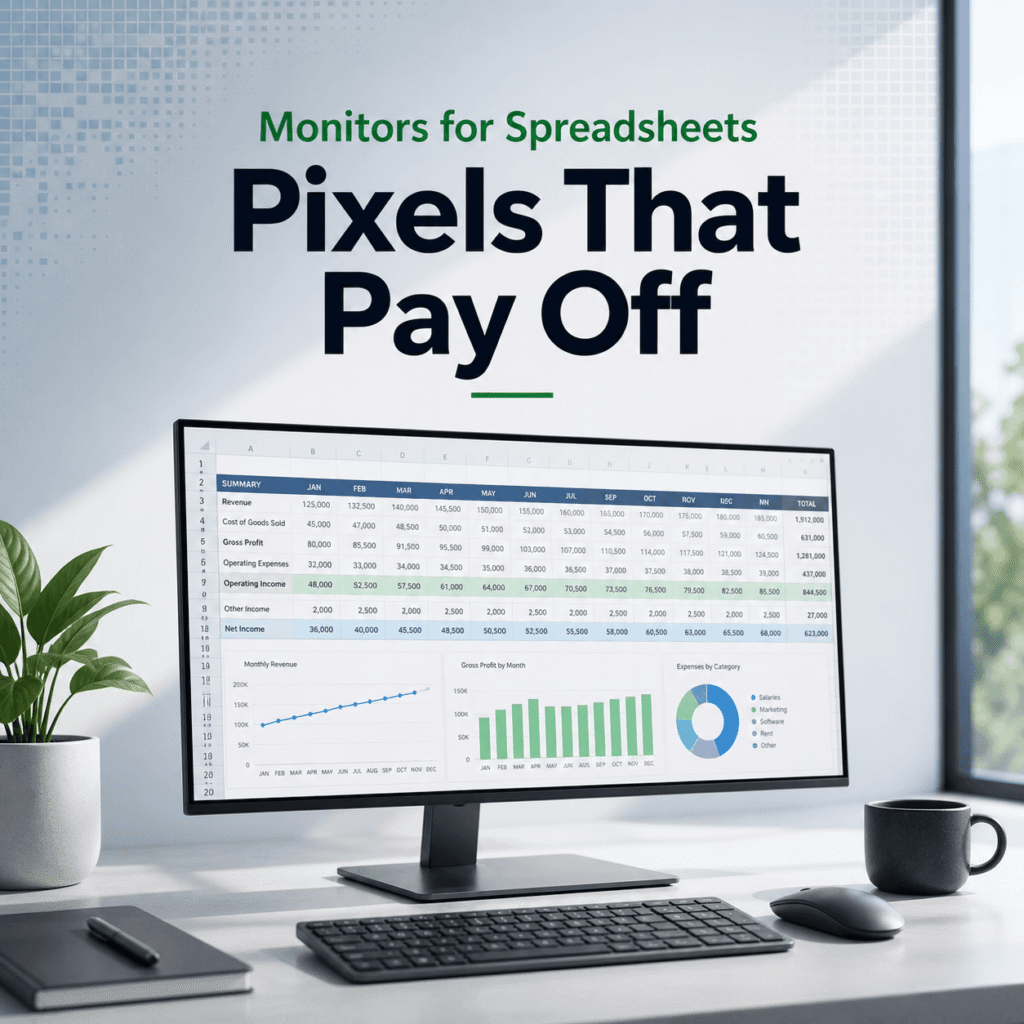
I did not used to think about monitors. At all.
I figured a screen is a screen. Plug it in, open Excel or Google Sheets, squint a little, scroll a lot, and call it “work”.
Then I had one of those weeks where you’re living inside a spreadsheet. Like, genuinely. Budgets, forecasts, pivot tables, messy exports from Stripe, ad platforms, CRMs, the whole pile. And I realized something kind of annoying.
A good monitor does not feel like a luxury when your job is basically rows and columns. It feels like a multiplier.
More pixels. Less scrolling. Fewer mistakes. Faster “where is that number” moments. Less neck strain. More calm. And yes, it can literally pay for itself if it saves you even a few minutes a day. Which it does.
This is a practical guide to buying a monitor specifically for spreadsheet work. Not gaming. Not video editing. Not “creator” vibes. Just the boring, beautiful world of cells and formulas.
And since you’re reading this on Tool Pick Guide, I’ll lean into what we do here. Quick verdicts, comparisons, and buying advice that’s actually tied to workflow. Not just specs for the sake of specs.
The spreadsheet problem most monitors create
Spreadsheets punish small screens in three ways.
- You lose context.
You can’t see the headers, totals, and the part you’re editing at the same time. So you scroll up, scroll back, forget what you were doing, rinse, repeat. - You work “zoomed in” all day.
You set zoom to 125% or 150% because text looks fuzzy or tiny. Which means fewer columns, fewer rows, more jumping around. - You get tired faster.
Eyes and neck. People talk about posture like it’s a moral issue. It’s not. It’s physics. Bad screen size and bad height = weird angles = fatigue.
A spreadsheet monitor, ideally, fixes those issues. You want a screen that lets you sit at a sane distance, keep text crisp at 100% zoom most of the time, and show enough of the sheet that you stop feeling cramped.
For more insights on selecting the right monitor for your needs or other tech-related queries, feel free to explore our blog.
What actually matters (and what doesn’t) for spreadsheet monitors
Let’s get the priorities straight.
1) Resolution and pixel density (this is the whole game)
For spreadsheets, resolution is not about “wow factor”. It’s about information density and clarity.
Here’s the simple version:
- 1080p (1920×1080): fine for email, not great for spreadsheet-heavy work unless the screen is small. On a 27 inch 1080p monitor, text often looks soft, and you’ll crank zoom up.
- 1440p (2560×1440): the sweet spot for most people. Especially at 27 inches.
- 4K (3840×2160): incredible for spreadsheets if you set scaling correctly and your computer handles it smoothly. Best at 27 to 32 inches.
Pixel density is the hidden factor. A 27 inch 1440p monitor usually looks sharper than a 32 inch 1440p monitor because the pixels are packed tighter. And sharper text means less eye strain. It’s not magic. It’s just easier to read.
2) Screen size (bigger is not always better, but it usually helps)
For spreadsheets, screen size translates to how much you can see at once. But if you go big without enough resolution, you get big blurry text. Not helpful.
Practical picks:
- 24 inch: okay if you’re tight on space or budget, best at 1080p.
- 27 inch: the default recommendation for spreadsheet work.
- 32 inch: great if you want big real estate, but pair it with 4K if you can.
- Ultrawide (34 inch, 21:9): amazing for side-by-side sheets or sheet + docs + Slack.
- Super ultrawide (49 inch): basically two monitors glued together. Overkill for some, life-changing for others.
3) Panel type (IPS is the safe choice)
Most spreadsheet users should buy IPS. It’s consistent, good viewing angles, good text clarity. VA can be fine, but you can get weird smearing on some models, and color shifting at angles. TN, just no. Not in 2026.
4) Refresh rate (do not overpay)
You do not need 165Hz to sum a column.
That said, 75Hz to 100Hz can feel nicer for scrolling, especially in big sheets. If the price difference is tiny, sure. But do not sacrifice resolution or ergonomics to chase refresh rate.
5) Ergonomics (height adjustment is not optional)
A spreadsheet monitor should have:
- height adjust
- tilt
- ideally swivel
- and if you do portrait mode for long lists, pivot
If a monitor doesn’t adjust, you end up stacking books under it like you’re back in college. Been there. It’s dumb.
6) Ports and docking (USB C is a real productivity feature)
If you use a laptop, USB C with power delivery is huge.
One cable for:
- charging
- display
- USB hub (keyboard, mouse, webcam)
This is not a “nice to have”. It changes how frictionless your desk feels. Especially if you move between home and office, or you’re a freelancer bouncing between rooms.
7) Built-in KVM (sneaky useful for spreadsheet people)
A KVM lets you use one keyboard and mouse for two devices. If you do spreadsheet work across:
- a work laptop and personal desktop
- a laptop and a mini PC
- or even two laptops
…a monitor with a KVM saves your sanity. Not required, but if your workflow is multi-device, it’s worth looking for.
The quick verdicts (what to buy, based on your spreadsheet life)
This is the section most people want. Here’s the short list logic.
If you want the best “normal person” spreadsheet setup: 27 inch, 1440p, IPS
It’s the most balanced combo:
- crisp text
- enough space for columns
- not too expensive
- works well on both Windows and macOS
- doesn’t demand GPU horsepower
If you are buying one monitor and you want to stop thinking about monitors. This is it.
If you live in spreadsheets all day and want less scrolling: 32 inch 4K
This is where pixels start to feel like power.
You can keep multiple panes open, see more rows without shrinking text into dust, and your brain gets more context. You’ll still use filters and pivots, but you’ll do less “where did that go” scrolling.
Make sure you have:
- a decent stand or an arm
- correct scaling (Windows and macOS both handle 4K well now, but you still have to set it)
- enough desk depth so you’re not sitting too close
If you constantly compare sheets, dashboards, and docs: 34 inch ultrawide (3440×1440)
Ultrawide is a spreadsheet cheat code.
You put:
- Sheet A on the left
- Sheet B on the right
Or sheet + web app. Or sheet + PDF contract. Or sheet + Slack without it stealing your focus.
For finance people, ops, media buyers, anyone doing reconciliation, it’s so good.
One warning though. Ultrawide is not as “tall” as a 32 inch monitor. You gain width, not height. If your sheets are deep vertically and you care more about rows than columns, consider 32 inch 4K instead.
If you want the maximum spreadsheet canvas: 49 inch super ultrawide (5120×1440)
This is the “I run my business from a spreadsheet” monitor.
It’s basically two 27 inch 1440p monitors side by side without the bezel in the middle. Glorious for:
- FP&A
- agency reporting
- ecommerce ops
- multi-client performance tracking
- anyone who does weekly reviews across 3 to 6 tabs
But you need space. And you need to like the idea of one giant screen. Some people prefer dual monitors because they can angle them. Fair.
A simple buying matrix (use this and you’ll be fine)
Here’s a practical way to decide without spiraling.
| Your situation | Best pick | Why |
| Budget setup, basic sheets | 24 inch 1080p IPS | Cheap, fine for light spreadsheet work |
| Most people, heavy spreadsheets | 27 inch 1440p IPS | Crisp text, good space, great value |
| You want more vertical space and clarity | 32 inch 4K IPS | More context, less scrolling, sharp |
| You compare lots of windows side-by-side | 34 inch ultrawide 3440×1440 | Width for multi-window workflows |
| You want the “command center” | 49 inch 5120×1440 | Two screens worth of space, no bezel |
If you’re still unsure, default to 27 inch 1440p IPS. It’s the least regret purchase in this whole category.
Why spreadsheets specifically love higher resolution
It’s not just “more stuff fits”. It’s also accuracy.
When you can see:
- the row labels
- the column headers
- the totals
- and the cells you’re editing
…you make fewer dumb errors.
Errors happen when you’re constantly scrolling and losing your place. When you copy a formula down 400 rows and you can’t see the top context anymore. When you’re matching IDs and the ID column disappears off-screen so you “temporarily” freeze panes and then forget you froze panes and then wonder why scroll feels weird. That one is a classic.
More resolution reduces cognitive load. It’s not glamorous, but it’s real.
The “hidden” spreadsheet features to look for
These are the details people skip, then regret.
Matte coating (usually better than glossy)
Glossy screens can look punchy, but reflections are a problem in bright rooms. Matte is easier on the eyes for long work sessions. Especially when your interface is mostly white cells with light gridlines.
Flicker-free and low blue light (nice, but don’t treat it like medicine)
Most modern monitors have flicker-free backlights. Low blue light modes exist. They can help at night. But do not buy a worse monitor just because it has a “comfort” badge.
Get the basics right first: sharp text, good ergonomics, proper brightness.
Good default sharpness (some monitors oversharpen text)
Weird one, but it matters. Some displays come with sharpness settings that make text look outlined. Like it has a halo.
If you can, read reviews that mention text clarity specifically for office work. We do this kind of testing at Tool Pick Guide when we evaluate productivity hardware, because spec sheets never tell the full story.
Power delivery over USB C (aim for 65W, preferably 90W)
If you run a bigger laptop, 90W is safer. 65W works for a lot of ultrabooks, but might not keep up under heavy load.
If you want a true one-cable desk, don’t ignore this.
Single monitor vs dual monitors for spreadsheets
This is the part where people get oddly emotional.
Dual monitors are great. You can dedicate one to the sheet and one to reference material. But the seam in the middle can be annoying if you’re working across one wide spreadsheet.
A single large monitor (32 inch 4K or ultrawide) gives you one continuous canvas. That can feel more “clean”.
Here’s a practical rule:
- If you regularly need two full size windows at once, consider dual 27 inch 1440p or a 49 inch super ultrawide.
- If you want one main work area with occasional side windows, get a 32 inch 4K.
- If you crave width for comparisons, get a 34 inch ultrawide.
And yes, you can do spreadsheets on a laptop screen. People also run marathons in sandals. It’s possible. It’s just not the point.
Scaling and settings (so your new monitor actually feels better)
A high resolution monitor can look incredible, or it can feel tiny and annoying, depending on settings.
A few practical tips:
- Windows + 4K: Start at 150% scaling on a 32 inch. Adjust from there.
- macOS + 4K: Use the “Looks like 2560×1440” style option on a 27 inch 4K, or a comfortable scaled option on 32 inch. macOS scaling is generally smooth, but pick what feels readable for 6 hour days, not what looks coolest for 6 minutes.
- Turn off weird “enhancement” modes: Dynamic contrast, super resolution, etc. They are usually made for video, not text.
- Set brightness lower than you think: Many monitors ship at retina-searing brightness. For office work, you usually want it lower, especially in a dim room.
If you do this stuff right, you can sit at 100% zoom in Excel or Google Sheets more often. That’s the win.
A few real world setups (so you can picture it)
Because specs are one thing. Desks are another.
Setup A: Freelancer doing invoices, light reporting, and admin
- 27 inch 1440p IPS
- laptop on a stand
- one USB C cable to the monitor
- keyboard and mouse plugged into the monitor hub
Result: clean desk, one screen to rule them all, easy to unplug and go.
Setup B: Agency ops lead living in Sheets, Airtable, and dashboards
- 34 inch ultrawide 3440×1440
- second cheap vertical monitor optional for Slack and email
Result: main canvas stays focused. Less tab juggling.
Setup C: Finance person doing models, scenarios, and long review sessions
- 32 inch 4K IPS (or dual 27 inch 1440p)
- monitor arm for exact height
- external keyboard with numpad (underrated)
Result: more context, fewer mistakes, less fatigue.
Setup D: Ecommerce operator managing SKUs, inventory exports, ads, and P&L
- 49 inch super ultrawide
- split into 3 zones (sheet, web app, notes)
Result: feels like a control room. Kind of ridiculous. Also kind of perfect.
What to avoid (common spreadsheet monitor mistakes)
A few traps.
Buying 27 inch 1080p because it’s “big”
It’s big, but not sharp. If you do spreadsheets daily, 27 inch 1080p often leads to fuzzy text or constant zoom adjustments. Spend a bit more for 1440p.
Ignoring the stand
If the monitor does not go high enough, you will hunch. Then you’ll blame your chair. Then your back. Then your life. It was the stand.
At minimum, get height adjustment. Or plan for a monitor arm.
Buying “gaming” features instead of clarity
You do not need RGB, extreme refresh rates, or aggressive contrast modes. You need crisp text, stable brightness, and a comfortable size.
Going ultrawide when you really need height
If your work is mostly tall lists, auditing, and scanning rows for anomalies, you might prefer a 32 inch 4K over a 34 inch ultrawide. Ultrawide is awesome, just be honest about what dimension you need.
The ROI argument (yes, pixels can pay off)
Let’s do rough math, because it helps.
Say a better monitor saves you:
- 5 minutes per day from less scrolling and faster navigation
- plus fewer “wait, where is that cell” moments
- plus less fatigue so you don’t slow down late afternoon
5 minutes per day is about 25 minutes per week. Around 20 hours per year.
If your time is worth even $50/hour, that’s $1,000/year.
And a really solid spreadsheet monitor is what. $250 to $700 for most people. Sometimes more, but still.
So yeah. Pixels that pay off.
My recommendations (in plain English)
Not brand specific here, because prices and models change constantly. But the categories hold up.
- Best value for serious spreadsheet work: 27 inch, 1440p, IPS, height adjustable stand.
- Best single monitor upgrade if you want more context: 32 inch, 4K, IPS, good scaling support, ideally USB C.
- Best for comparing sheets and apps side-by-side: 34 inch ultrawide, 3440×1440, IPS.
- Best “I live in spreadsheets” command center: 49 inch super ultrawide, 5120×1440, decent curvature, strong stand or arm.
If you want help picking specific models, that’s exactly what we publish at Tool Pick Guide. We do side-by-side comparisons and practical “this one is better for this workflow” breakdowns, not just spec lists. So feel free to browse around the site and grab a couple of our monitor roundups and productivity hardware guides.
Wrap up
If your work is spreadsheets, your monitor is not just a display. It’s the space where decisions happen. Where mistakes happen too, if you’re cramped and tired.
Get enough resolution to keep text crisp. Get enough size to keep context visible. Get a stand that lets you sit like a normal human.
Then open your sheet and notice something subtle.
You’re not fighting the screen anymore. You’re just working.
FAQs (Frequently Asked Questions)
Why is a good monitor important for spreadsheet work?
A good monitor acts as a multiplier for spreadsheet work by providing more pixels, reducing scrolling, minimizing mistakes, speeding up data lookup, decreasing neck strain, and creating a calmer work experience. It can save you time daily and essentially pay for itself.
What are the common problems with most monitors when working on spreadsheets?
Most monitors create three main issues for spreadsheet users: losing context due to limited screen space forcing constant scrolling; working zoomed in which reduces visible rows and columns; and causing faster fatigue due to poor ergonomics leading to eye strain and neck discomfort.
What resolution and screen size should I choose for optimal spreadsheet use?
1440p resolution at 27 inches is considered the sweet spot for most spreadsheet users, offering sharp text and enough screen real estate. 1080p is acceptable only on smaller screens like 24 inches. For larger screens like 32 inches, 4K resolution is recommended to maintain clarity. Ultrawide monitors are great for multitasking with side-by-side sheets.
Which panel type is best suited for spreadsheet monitors?
IPS panels are the safest choice for spreadsheet work due to their consistent color reproduction, wide viewing angles, and good text clarity. VA panels can be acceptable but may have smearing or color shifts at angles. TN panels are not recommended in 2026 for this purpose.
How important are refresh rate and ergonomics in choosing a spreadsheet monitor?
Refresh rates between 75Hz to 100Hz can make scrolling through large sheets smoother but should not come at the expense of resolution or ergonomics. Ergonomics are crucial; height adjustment, tilt, swivel, and pivot features help reduce physical strain and improve comfort during long spreadsheet sessions.
What connectivity features enhance productivity for spreadsheet users?
USB-C with power delivery is highly beneficial as it allows one cable connection that handles charging, display output, and USB hub functions (keyboard, mouse, webcam). Built-in KVM switches enable using one keyboard and mouse across two devices seamlessly, improving workflow especially if you switch between multiple computers.